Queries in SliceVault
Queries are the built-in communication tool for clarification, correction, and follow-up during the study workflow.
Use this page when you need to understand where queries appear, how they behave, and what different roles can do with them.
Where Queries Appear
Queries usually appear in three places:
- on the repository as an indicator on the visit
- on the dedicated query list page
- inside the viewer when you open the visit in context
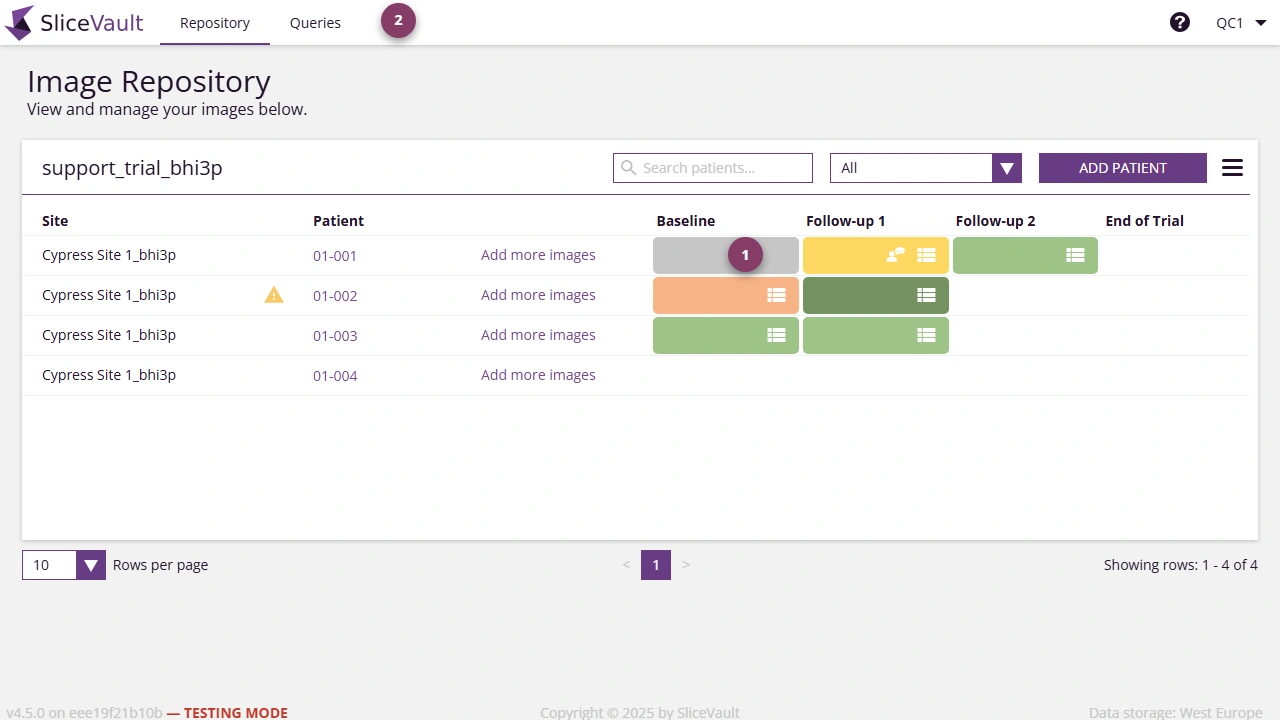
- Use 1 to spot visits with an open query.
- Use 2 to open the query list directly from the repository.
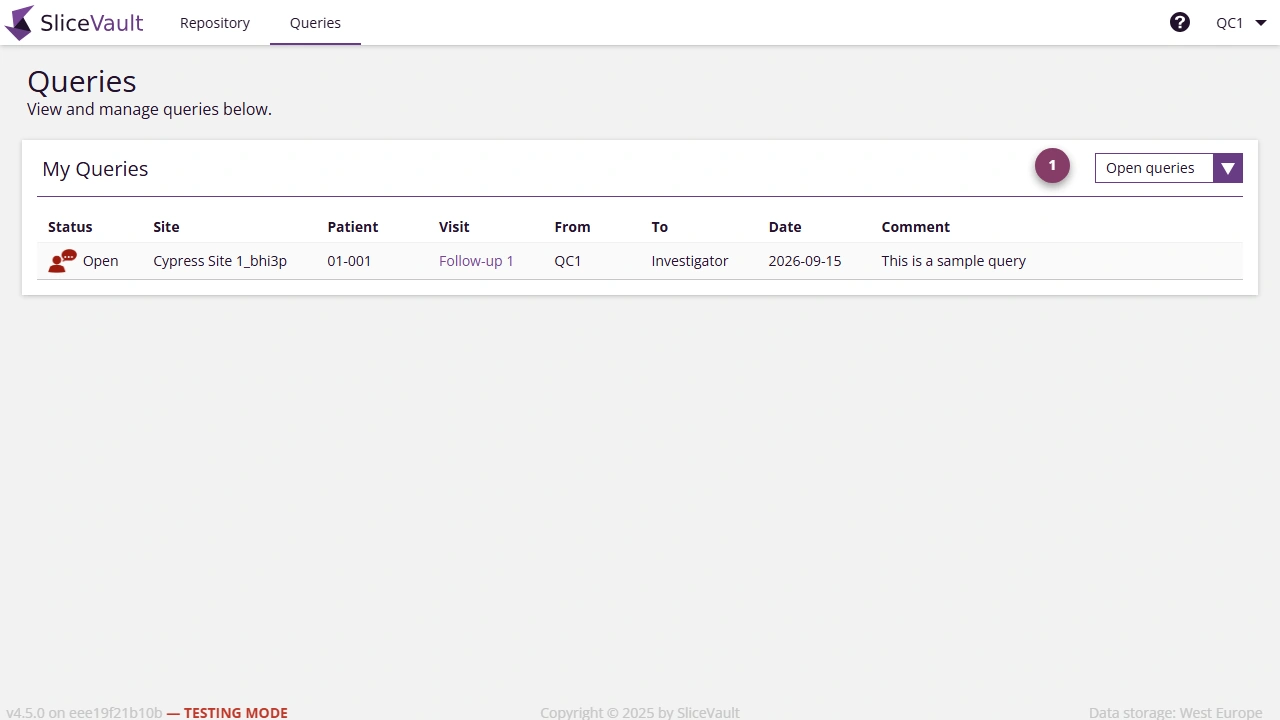
- Use 1 to filter and review queries by status.
Open a New Query
From the viewer, open the query panel for the current visit and create a new query.
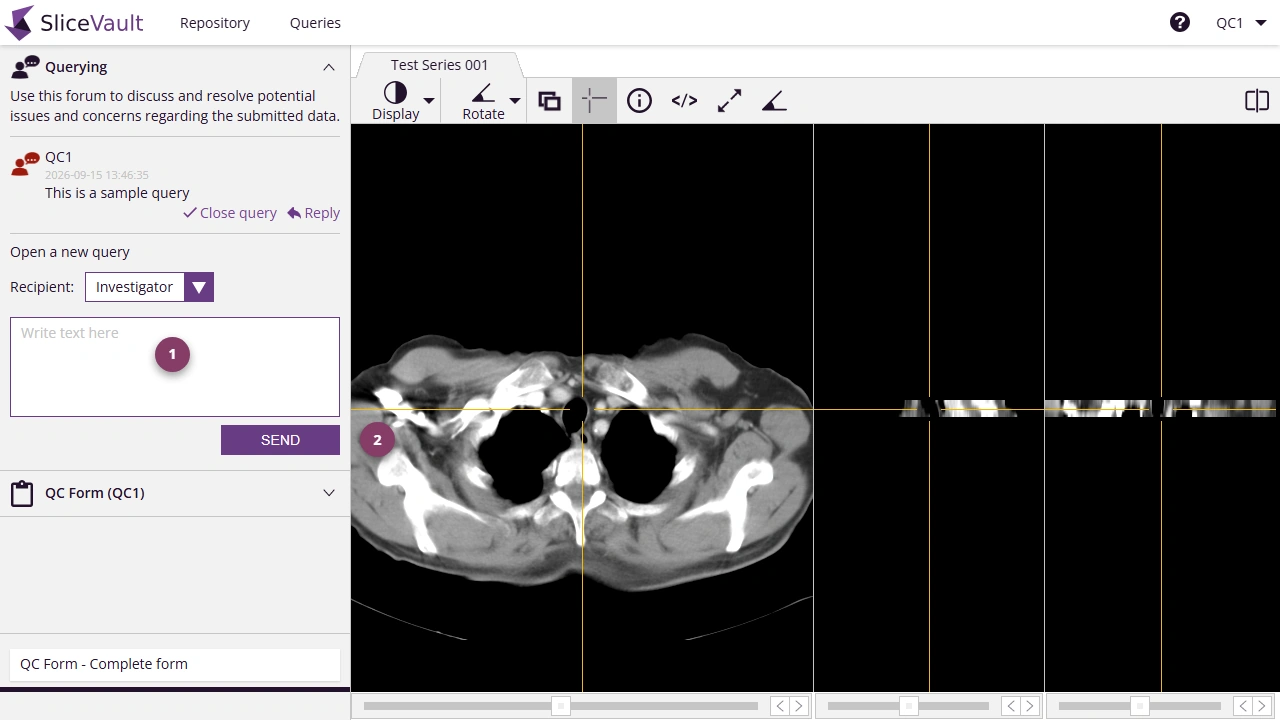
- Use 1 to choose the recipient.
- Use 2 to enter the query description.
- Click Send.
Opening a query normally triggers an email notification to the selected recipient.
Reply to a Query
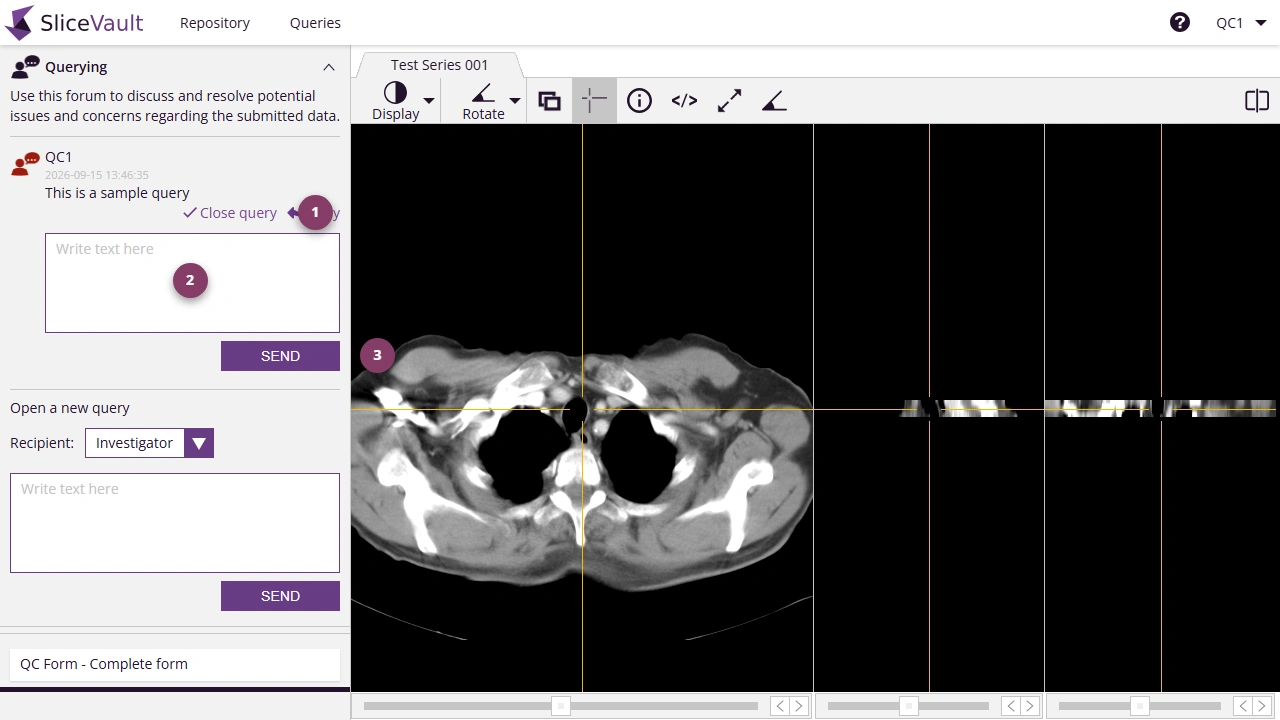
- Use 1 to open the reply action for the relevant query.
- Use 2 to review the existing query conversation.
- Use 3 to enter your response and click Send.
Close a Query
Some roles can close a query after the issue is resolved.
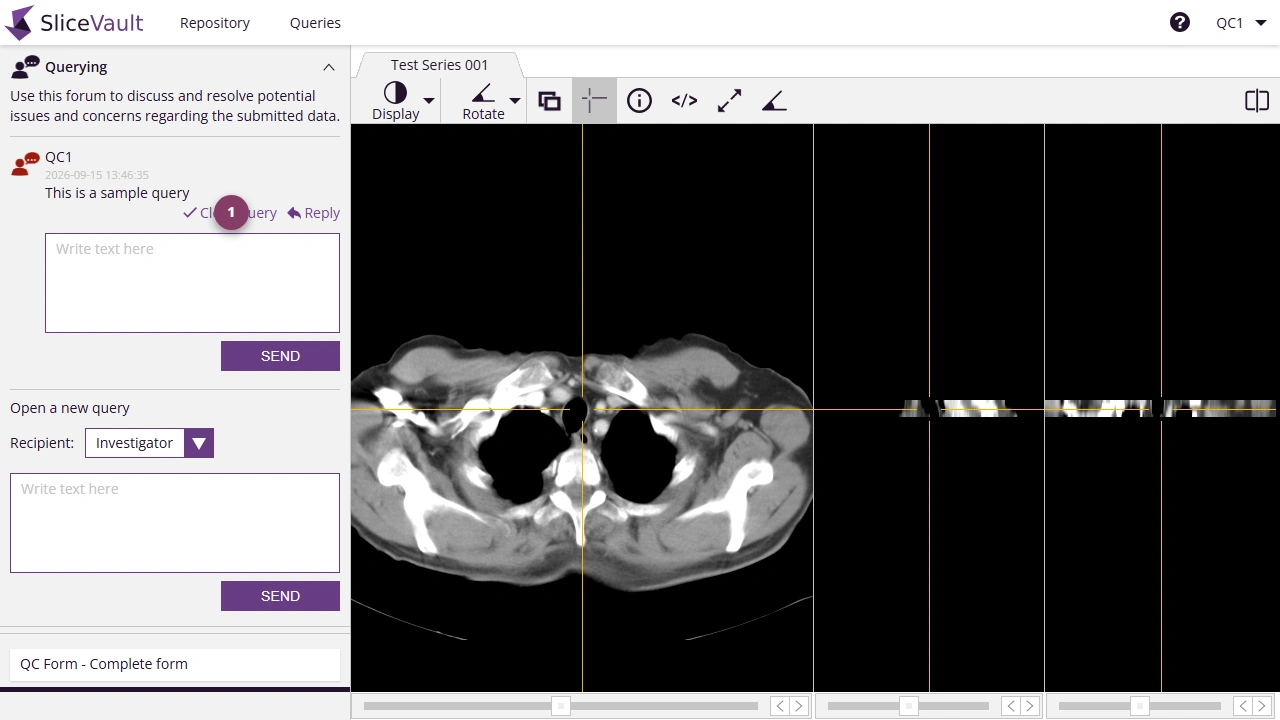
- Use 1 to close the query once the issue is resolved.
In many studies, open queries block the next workflow step until they are closed.
Role Differences
- Investigators usually respond to queries raised by a Quality Control Manager or Readers
- Readers can usually open and reply to queries, but often cannot close them
- Quality Control Managers usually open, manage, and close queries as part of workflow control
Common Query Questions
- QC: Manage Queries, if you need the QC close-and-manage workflow
- Why can’t I submit the visit?, if the Investigator workflow is still blocked
- Why can’t I approve the visit?, if the QC workflow is still blocked
- Reader: Manage Queries, if you only need the Reader query page
- Investigator: Respond to Queries, if you only need the Investigator query page
Role-Specific Guidance
If a query is blocking the next workflow step, continue to the role-specific page for submission, QC approval, or Reader completion.