Select Files
Once the visit is selected, choose the files to upload from your local computer.
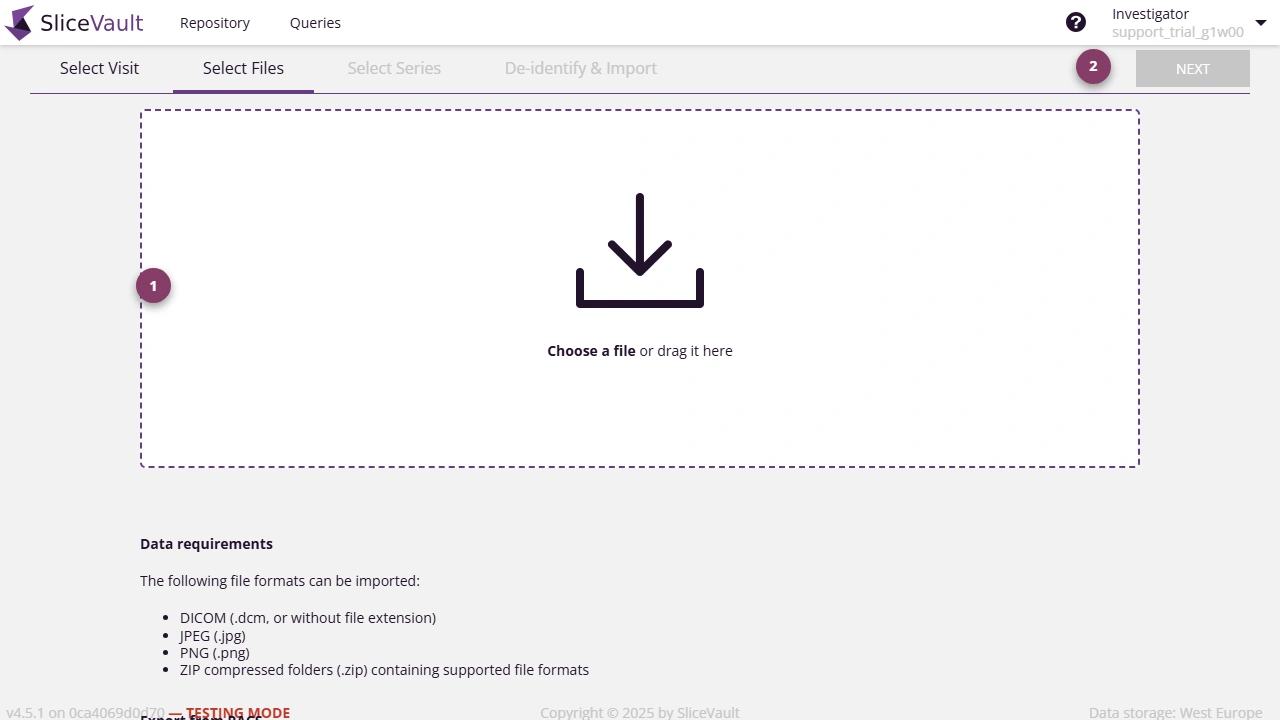
- Use 1 to drag files into the drop zone or choose them from your computer.
- Use 2 to continue after browser processing finishes.
Before uploading, make sure the data has been exported from your local PACS or source system to a local folder that your browser can access.
Common Issues
- SliceVault automatically skips files that should not be uploaded, such as application files, DICOM directory files, duplicate files, documents, and DICOM files that use an unsupported Transfer Syntax UID.
- Large batches can take time to process before Next becomes available. During this step, SliceVault is moving the files into temporary browser memory so they can be prepared for de-identification and upload.
- If the spinner never finishes and Next is never enabled, the browser may not be able to access the selected files. Make sure the files are saved on the local computer, not being read directly from Dropbox, Google Drive, or another cloud-sync location. Local security software, firewall rules, or browser restrictions can also block file access. If needed, try another browser or contact local IT support.
If processing never completes or the button stays disabled, continue to Why Is My Upload Stuck?.