Complete Data Transfer Form
The Data Transfer Form, or DTF, is the Investigator form used to submit required study information together with the uploaded images.
The DTF is study-specific, so the exact fields and layout may differ from the example shown on this page.
For the shared form behavior in SliceVault, see Forms in SliceVault.
Where the DTF Appears
Open the visit, click Preview Image, and locate the DTF next to the image workflow in the viewer.
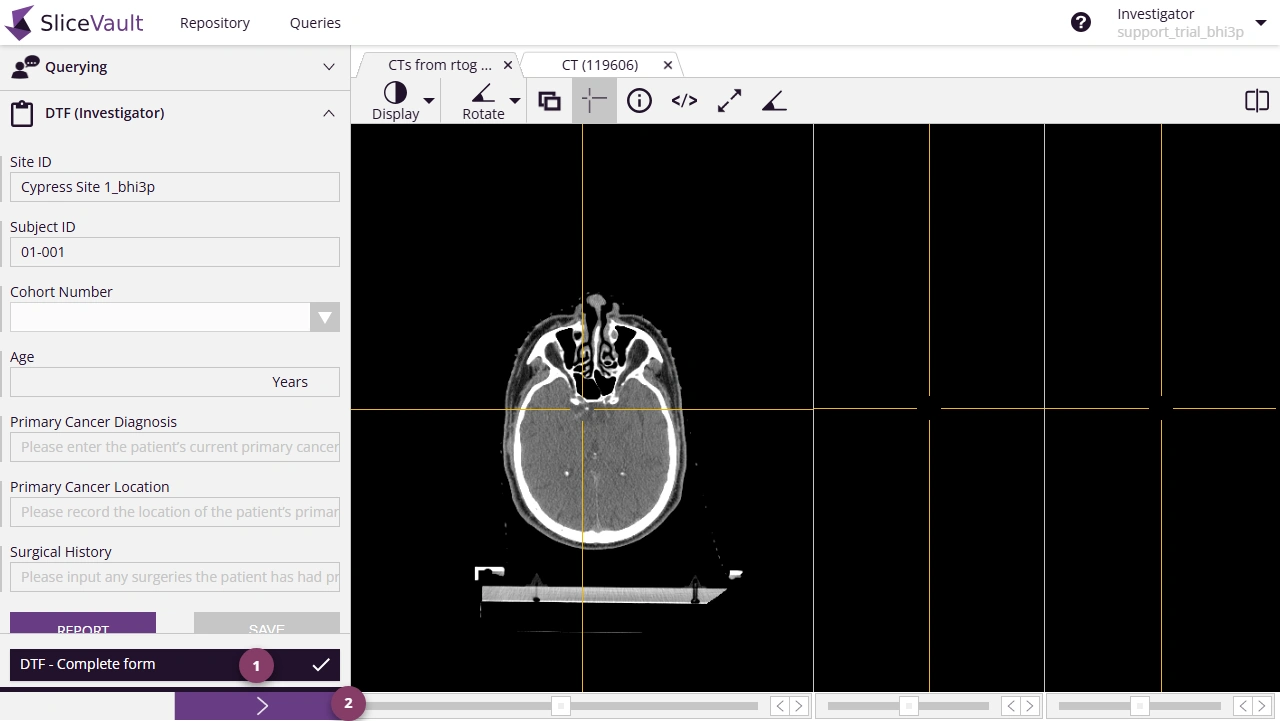
- Use 1 to complete the form.
- Use 2 to proceed to next form or return to the Visit Dashboard.
If prompted, complete the electronic signature process before proceeding.
After the DTF is complete, return to the Visit Dashboard and continue to Complete Submission.
Edit a Completed DTF
If editing is allowed for the visit, reopen the form from the lock message, make the required changes, and save them.
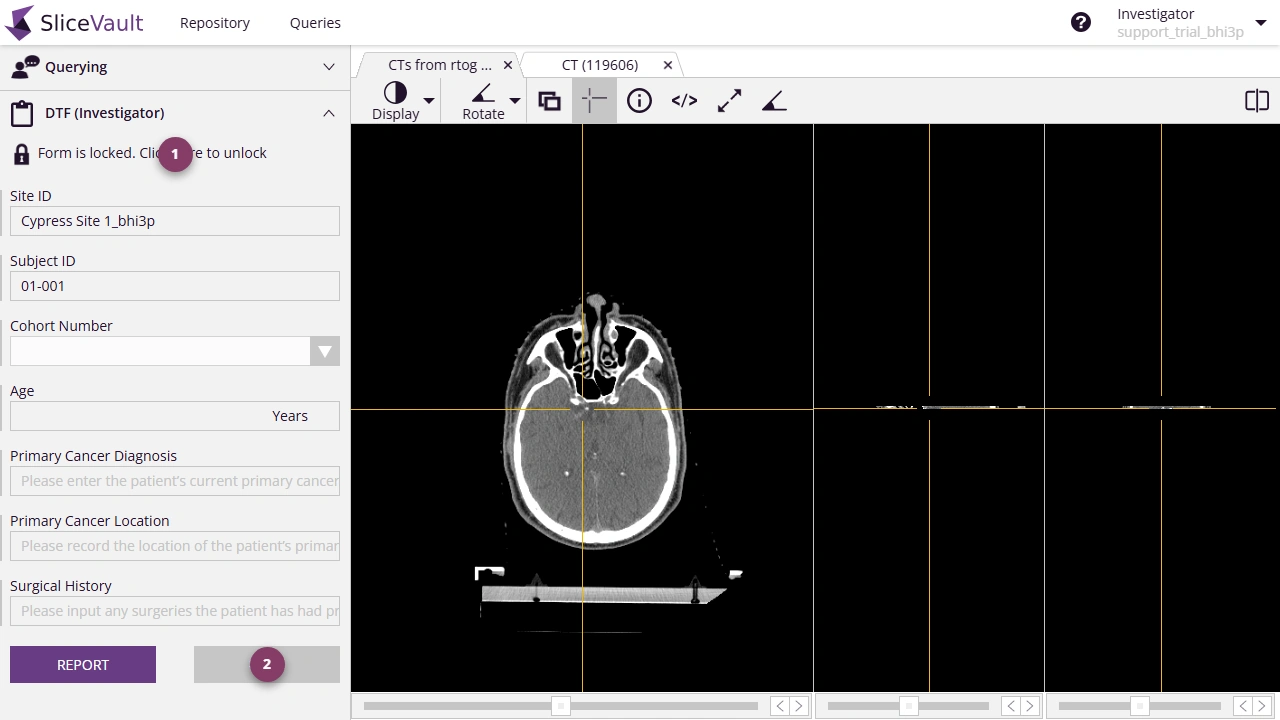
- Use 1 to unlock the completed answer group.
- Use 2 to save the updated values.
If the entire form must be cleared before submission, use Reset checklist from the Visit Dashboard.
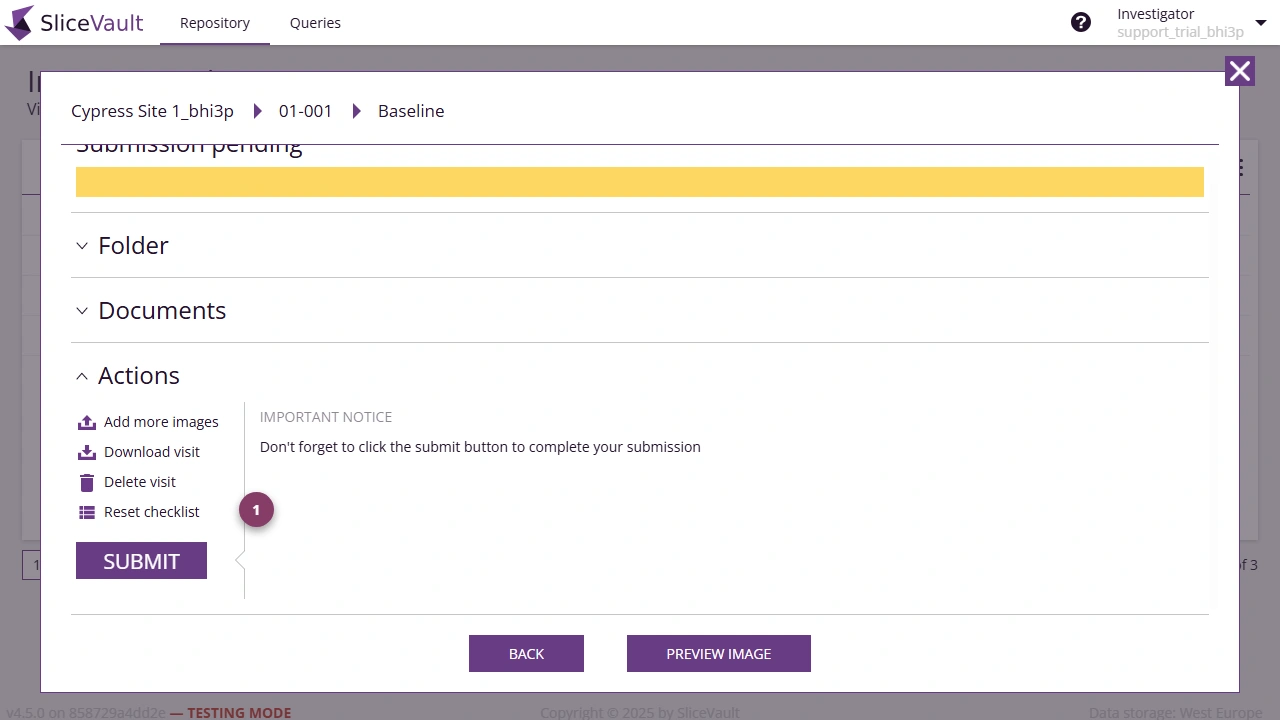
- Use 1 to reset the checklist when the whole DTF must be cleared and completed again.
Download the PDF Record
If the study is configured to generate a PDF or document copy, you can download it from the Documents section on the Visit Dashboard.
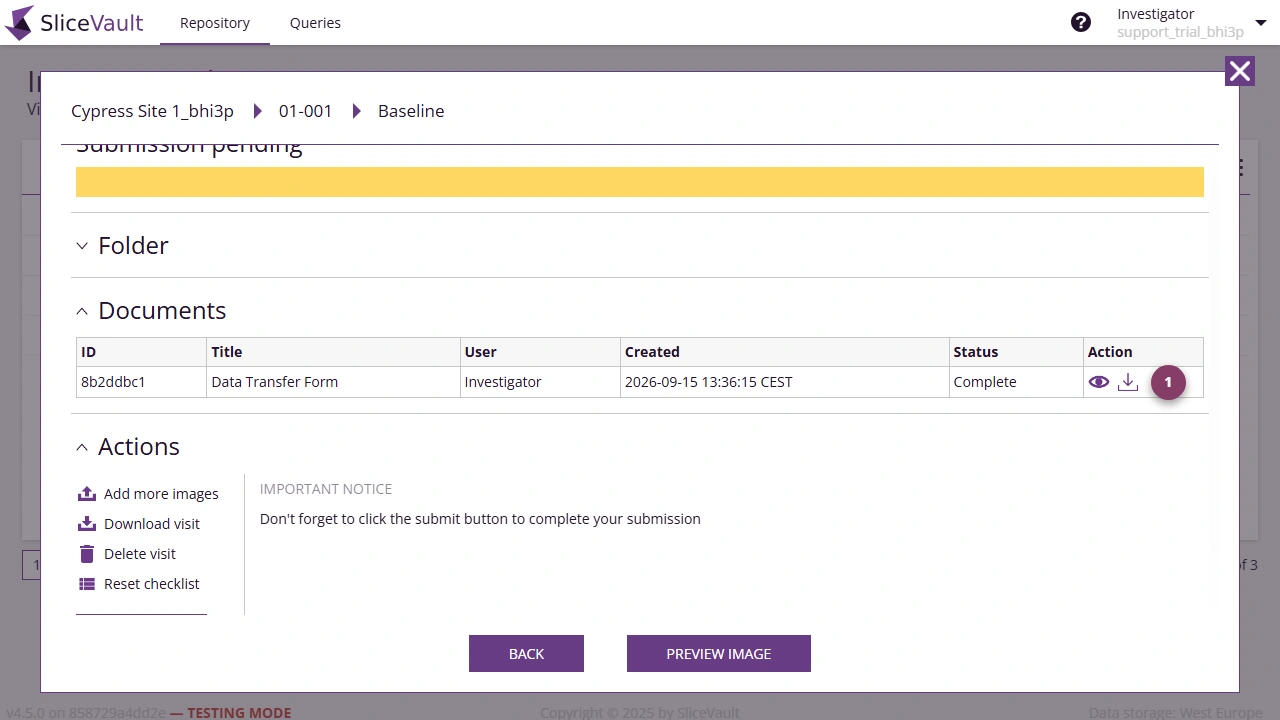
- Use 1 to download the generated DTF record.