Manage Users
As a Trial Administrator, you use Manage Users to create accounts, open existing users, adjust access, and reset passwords.
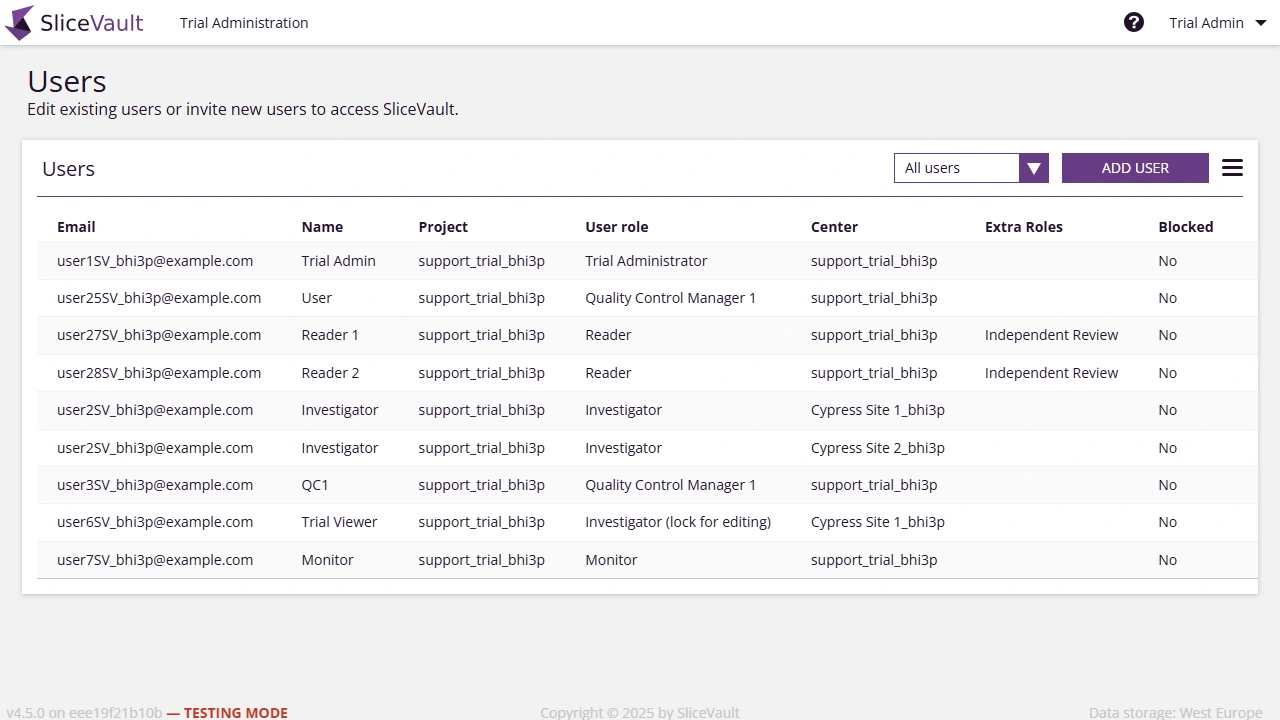
Main Actions on This Page
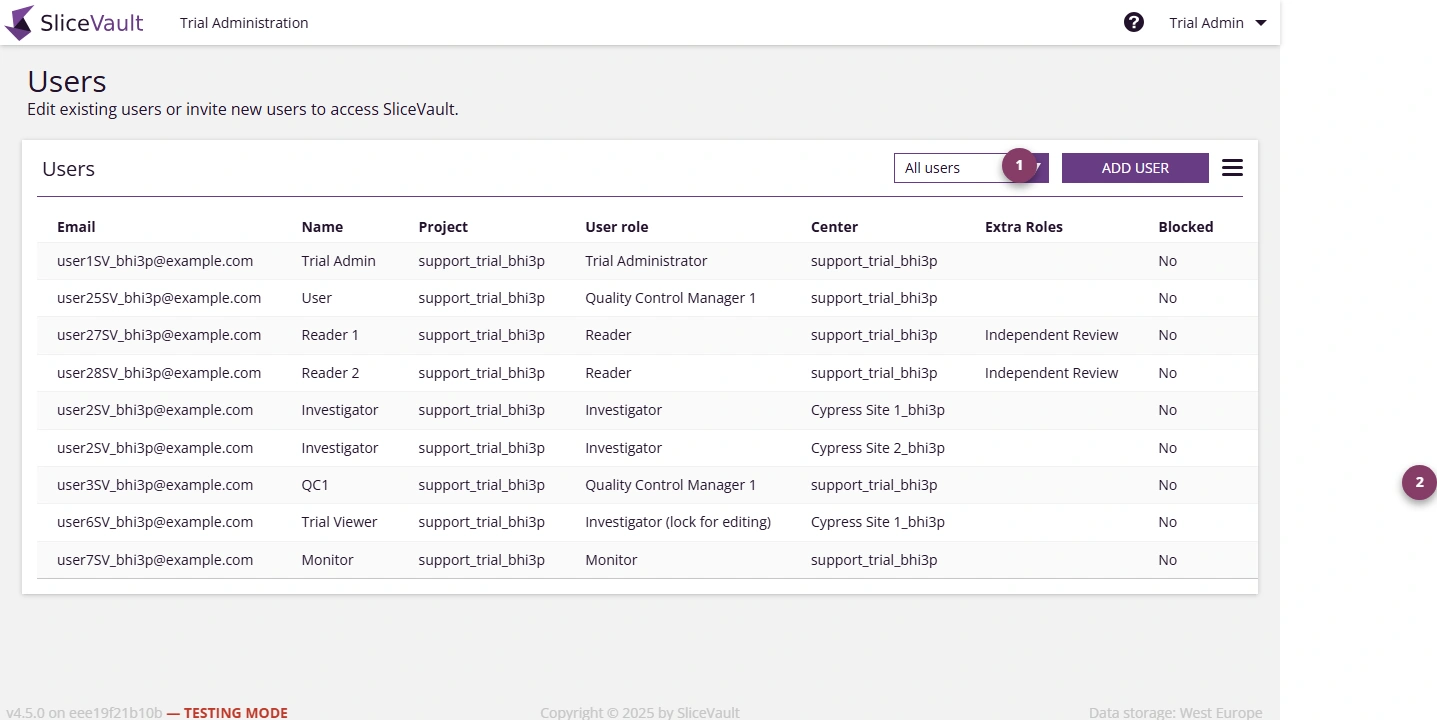
- Use 1 to add a new user.
- Use 2 to open an existing user and update their access.
Create a New User
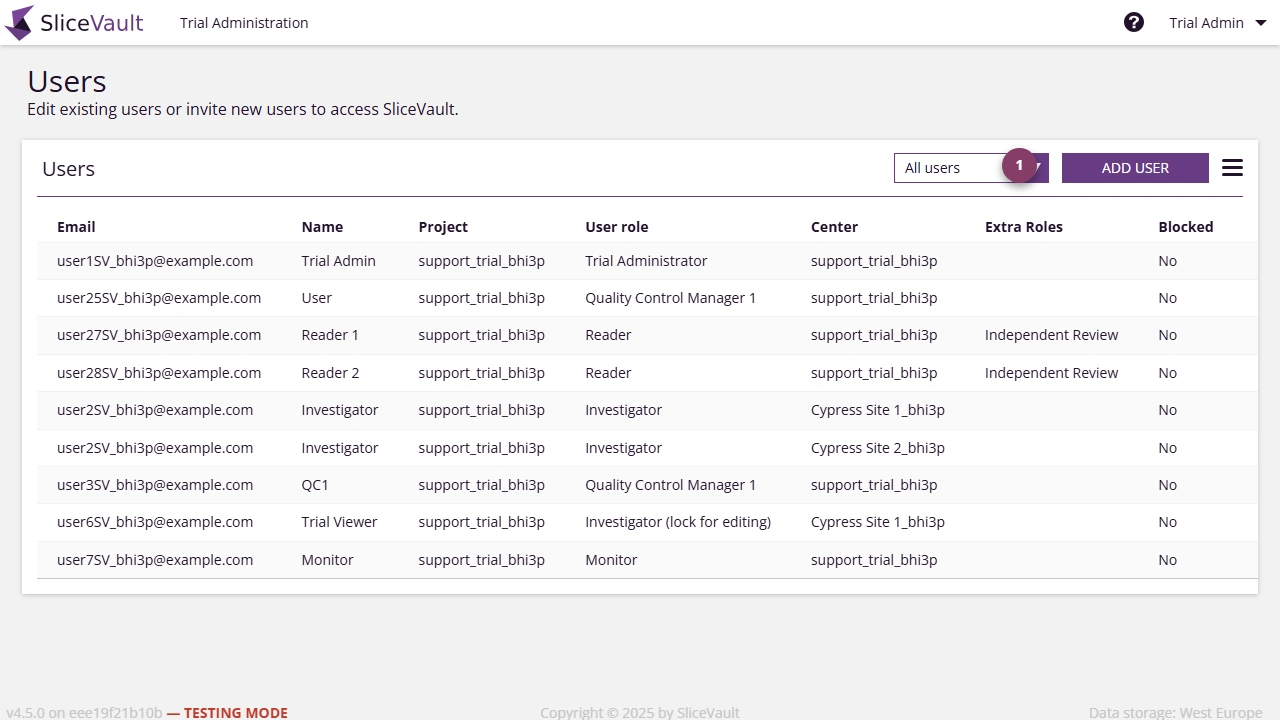
- Click Add User from the Manage Users page.
- Enter the user details, assign the correct site, and choose the appropriate role.
- Save the account so the user receives their invitation.
Each new user receives an automated email invitation with login credentials and instructions for accessing SliceVault.
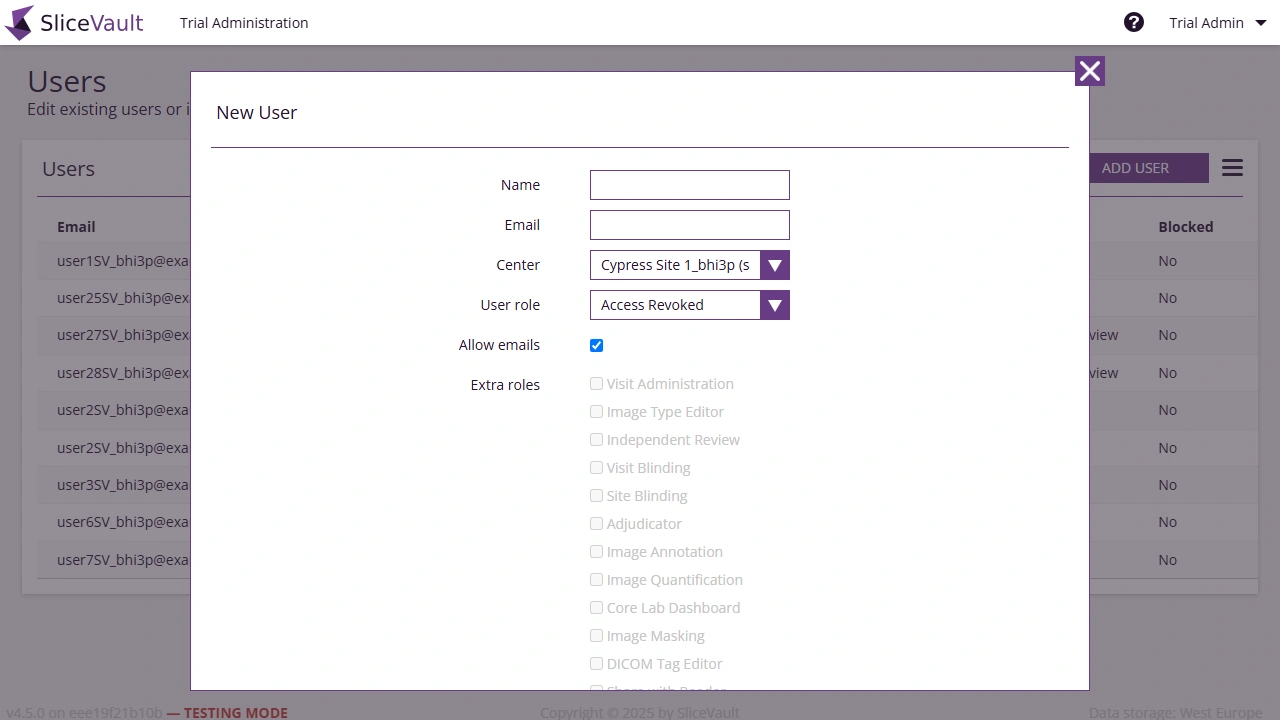
Note The email address and assigned site cannot be changed after the account is created. If either is wrong, create a new account instead.
Core User Roles
User roles define what actions a person can perform in the system.
- Investigator: uploads and submits imaging data, completes site forms, and responds to queries
- Quality Control Manager: reviews submitted data, performs QC checks, and manages queries
- Reader: assesses images that have passed QC and records study-specific results
- Trial Administrator: manages sites, users, and overall study access
- Monitor / Project Manager: oversees progress, compliance, and submitted outputs
Add-on Features
Users can also receive add-on permissions for project-specific tasks such as DICOM tag editing, reader blinding, advanced QC support, or visit administration. Role changes and add-on permissions for an existing user are managed from the user editor.
For the step-by-step edit flow, continue to Edit User Access.
Password Reset and Access Support
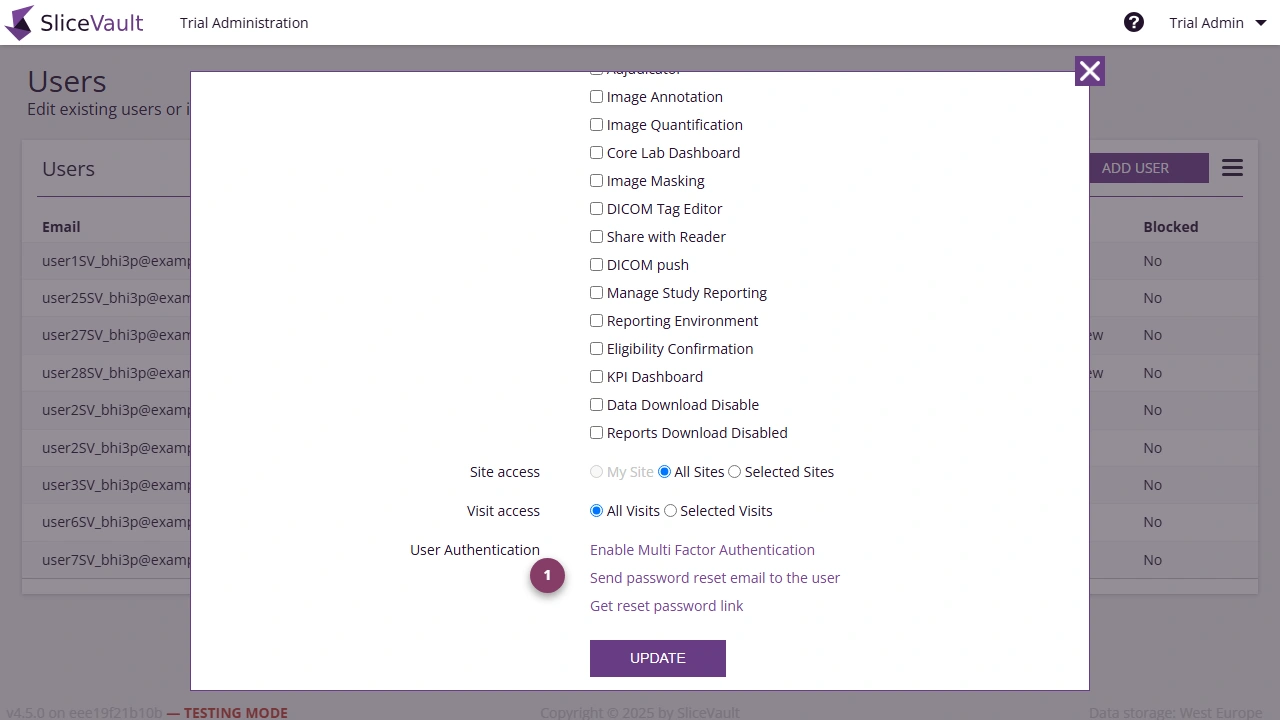
- Use 1 to send a password reset email or generate a reset link for the selected user.
Use the user editor to send a password reset email or generate a reset link when the user cannot access their account. If email delivery is unreliable, you can share the generated reset link directly with the user.
Unblock a Locked User
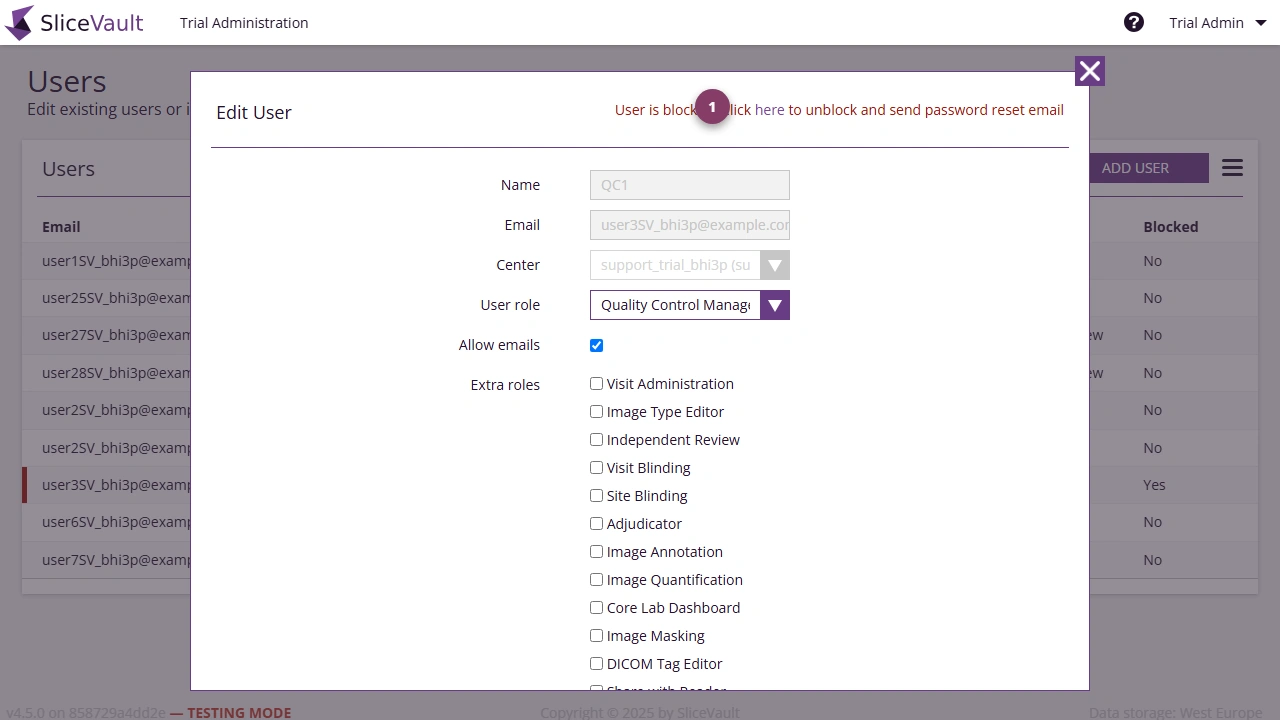
- Use 1 to unblock the selected user after the account has been locked.
If a user enters the wrong password five times, SliceVault locks the account before repository access is granted. To restore access, open the user from Manage Users and click Unblock. The Unblock link is shown only while the account is locked.
When you click Unblock, SliceVault restores the account and automatically sends the user an email with instructions to reset their password and regain access.