Need to Push Images to PACS?
Access note: This feature is only visible when the relevant add-on has been enabled for the study and assigned to your user account. If you cannot see it, contact your Trial Administrator or main study contact. Trial Administrators can review add-on access in Edit User Access.
Use DICOM Push when data should be sent directly from SliceVault to a configured DICOM server or PACS instead of being downloaded manually.
Typical Users
- Quality Control Managers
- Readers
- Other roles with the Sync to PACS permission
What Problem It Solves
DICOM Push provides a direct export route from the Visit Dashboard into an external imaging endpoint.
How to Use It
- Open the relevant visit.
- Click Push visit to DICOM server from the Visit Dashboard.
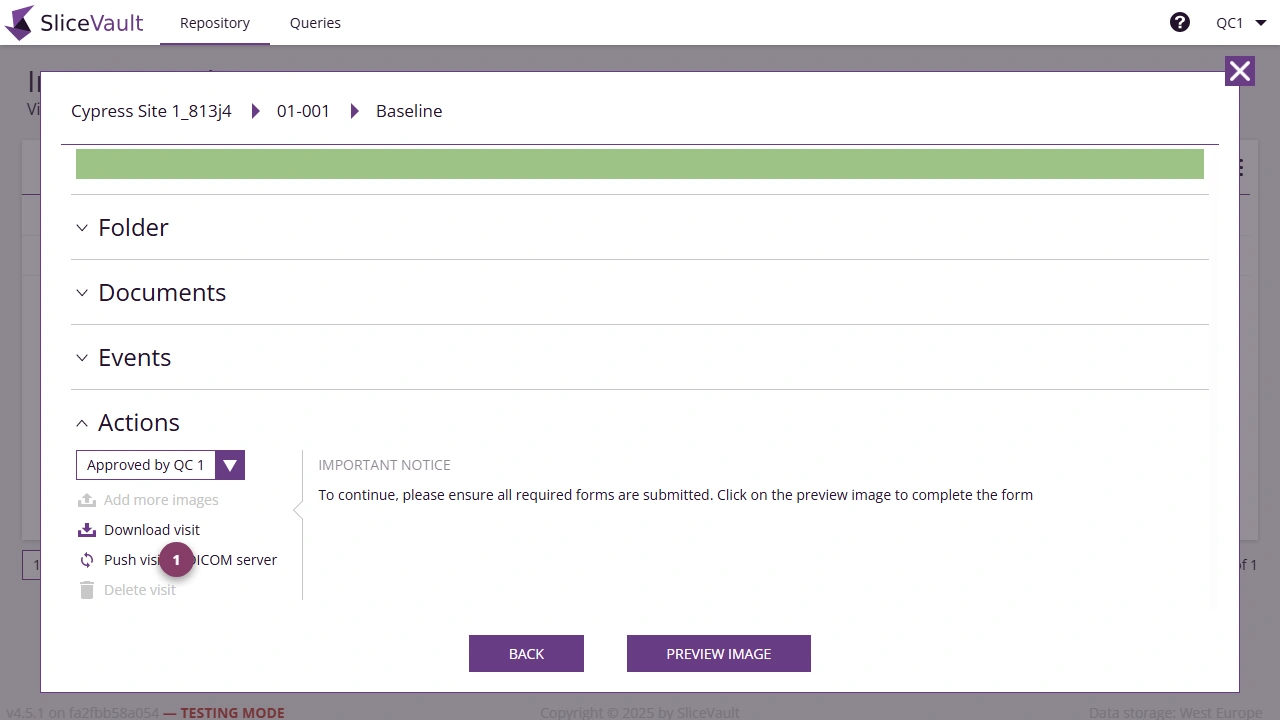
- Use 1 to start the DICOM Push action for the visit.
SliceVault will then transfer the DICOM data for that visit to the configured destination.
Related Options
If you only need a local export, use the standard download functions instead of DICOM Push.