Forms in SliceVault
Forms are used throughout SliceVault to capture structured study data such as Data Transfer Forms, QC forms, and Reader assessments.
Use this page when you need the shared form behavior in SliceVault, regardless of role.
Where Forms Appear
Forms are usually opened from the Visit Dashboard by clicking Preview Image. Inside the combined viewer and form environment, the form appears alongside the image workflow.
Standard Form Behavior
Most forms follow the same pattern:
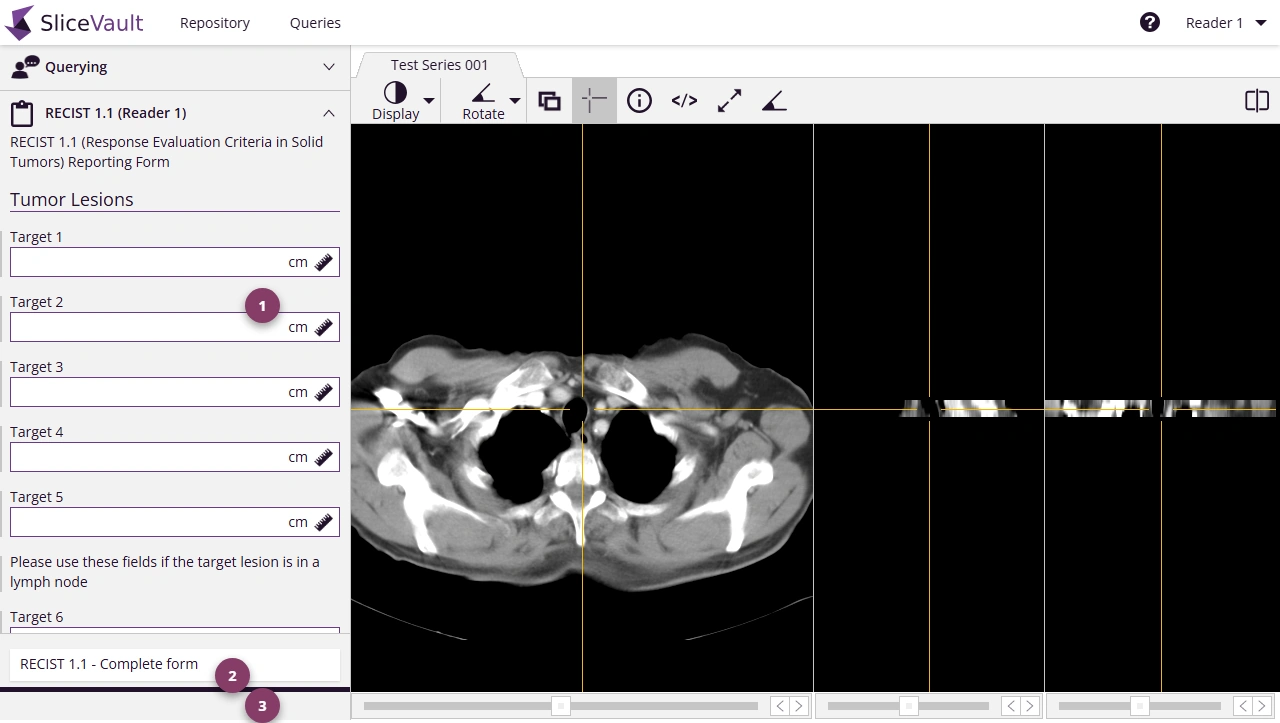
- Use 1 to move to the next image or form item when required.
- Use 2 to complete the visible form fields.
- Use 3 to finish the form and return to the Visit Dashboard.
Once a form is completed, it normally becomes read-only.
Editing a Completed Form
Completed forms are usually locked by default. Depending on the study and your role, you may see one of these options:
- an unlock action that reopens the completed form for editing
- a reset checklist action that clears the entire form
- no edit option at all unless elevated access is granted
If you only need the role-specific workflow, use the role links below instead of this shared page.
If the study uses electronic signature, you may be asked to complete that step before changes are saved or finalized.
Forms and Documents
Completed forms become part of the study record. In some studies, SliceVault also generates a PDF or document copy that can be downloaded from the Visit Dashboard.
Common Form Questions
- Why is my form locked?
- Edit a Completed QC Form, if you need the QC reopen instructions
- Why is my form, document, or download missing?
- Investigator: Complete Data Transfer Form, if you need the Investigator form page
- Reader: Complete Assessment Form, if you need the Reader form page
Role-Specific Guidance
If a form stays locked or a document is missing, continue to Why is my form, document, or download missing?.