Edit User Access
After a user has been created, Trial Administrators can return to the user editor to adjust roles, add-on permissions, and other study-specific access settings. This is the usual place to update access when responsibilities change during an ongoing study.
Open the User Editor
- Go to Manage Users from the trial administration area.
- Click the user you want to update.
- Review the role and add-on settings in the user overlay.
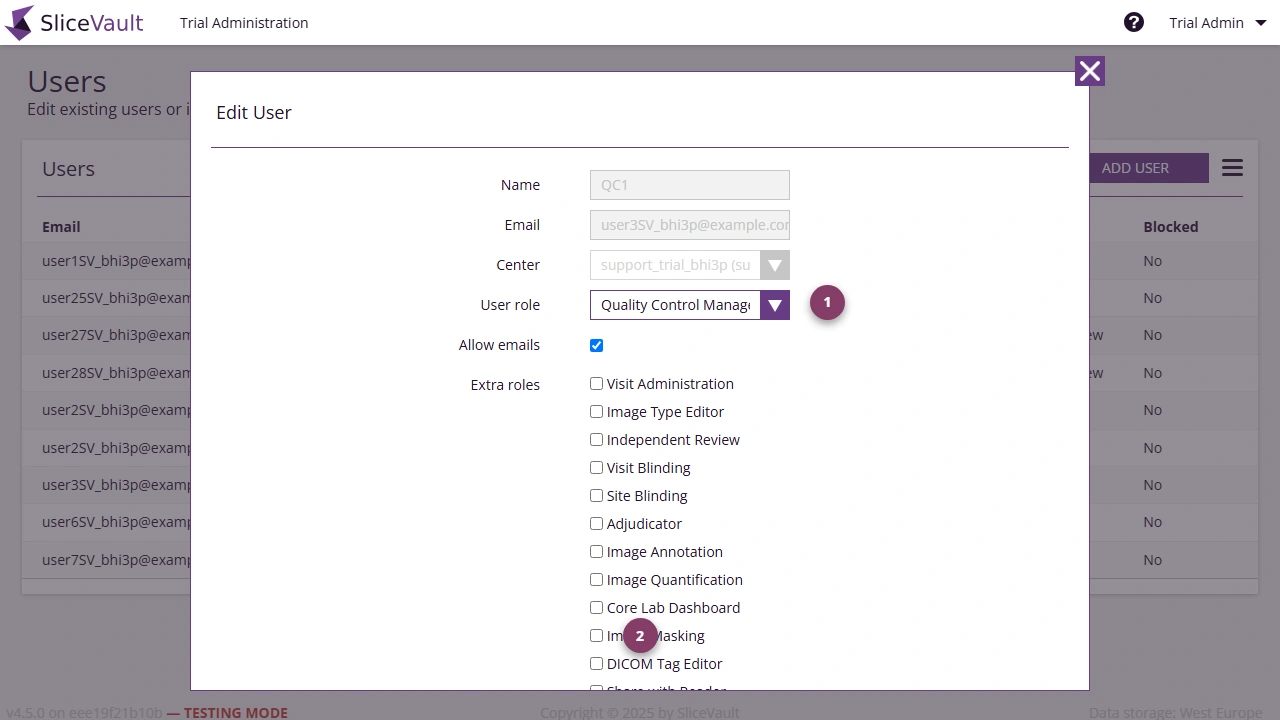
- Use 1 to change the user’s primary trial role.
- Use 2 to review or update add-on permissions.
Update Roles and Add-on Permissions
From the user editor you can typically:
- change the user’s primary trial role
- grant or remove add-on features
- review whether the user should keep the same level of access for the current study
Make role changes carefully, especially in live studies, because they directly affect which workflow actions the user can perform.
Review Visit or Study-Specific Access
Some studies expose additional access controls further down in the user editor. These settings can be used to fine-tune what the user is allowed to see or work on inside the repository.
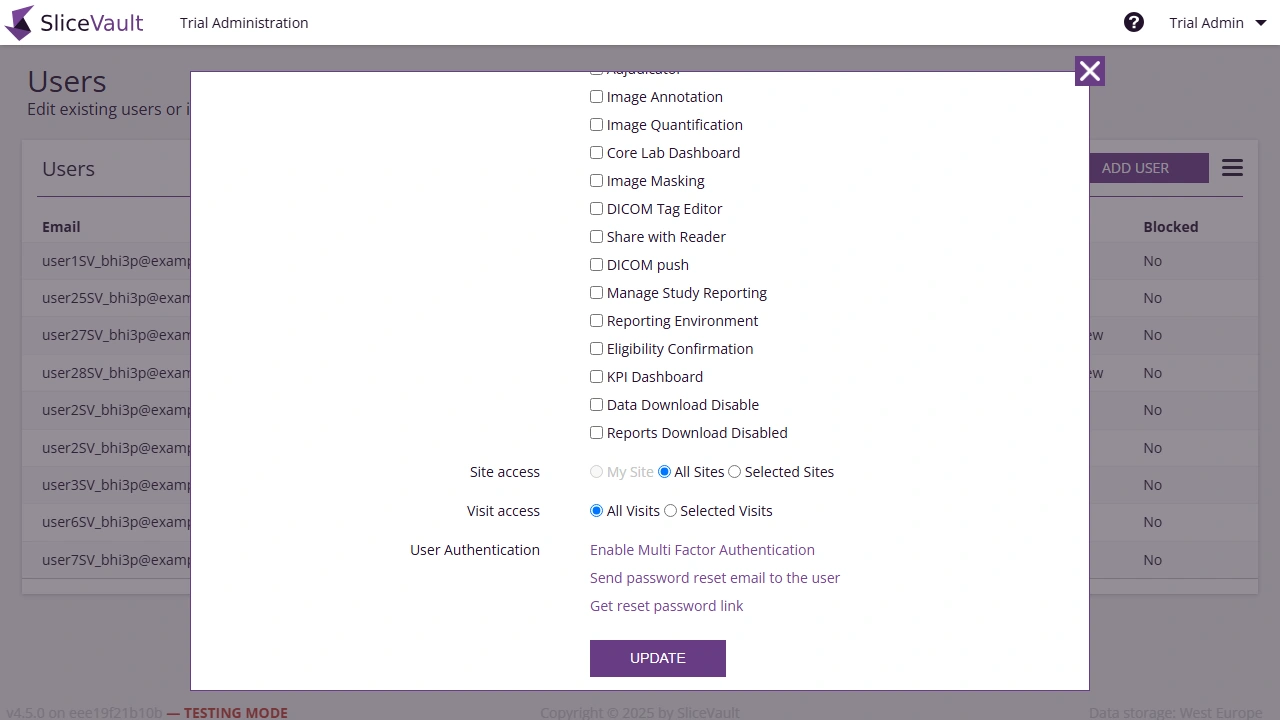
Use these lower-level access settings when a user should not have the same scope as everyone else with the same primary role.
Related Tasks
- To create a brand new user, see Manage Users
- To reset a password from the same user editor, see Manage Users
- To restore a locked account after repeated failed login attempts, see Manage Users
- To control whether an entire site can log in, see Why can’t a whole site access the study?