Delete Data
Quality Control Managers can remove files or visits when the study workflow and role permissions allow it.
Note: Removing data is irrevocable. You will not be able to restore data once deleted.
- Open the Folder section to remove an individual file.
- Use Delete Visit when the entire visit should be removed.
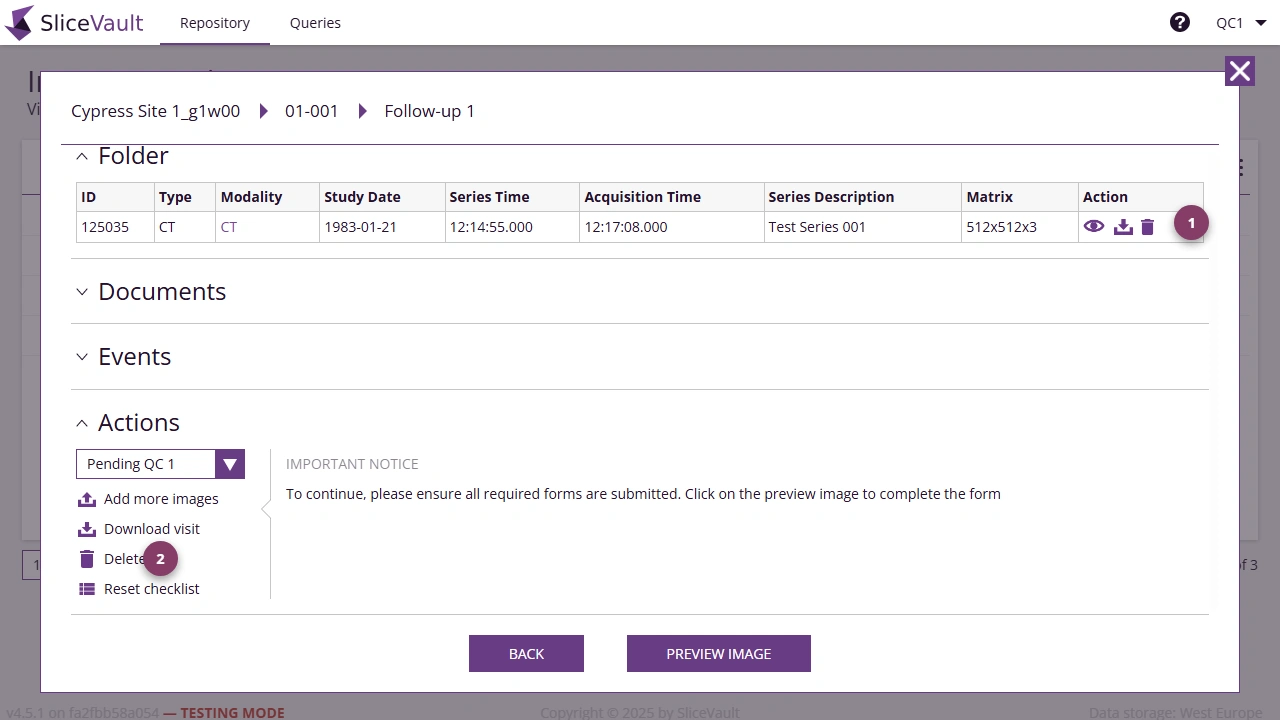
- Use 1 to delete a single file.
- Use 2 to delete the full visit.
If deletion is unavailable, the visit may already be locked in a later workflow step or your account may not have delete permission.
Removing an Entire Patient
Removing a full patient record is only available to users with the Quality Control Manager or Project Manager role.
Important: You can only remove a patient after all visits for that patient have been deleted.
If any visit remains, the Remove Patient button will be disabled.
Follow these steps to remove an entire patient: On the Repository page, click the Patient ID for the patient you want to remove.
- On the patient detail page, select Remove Patient.
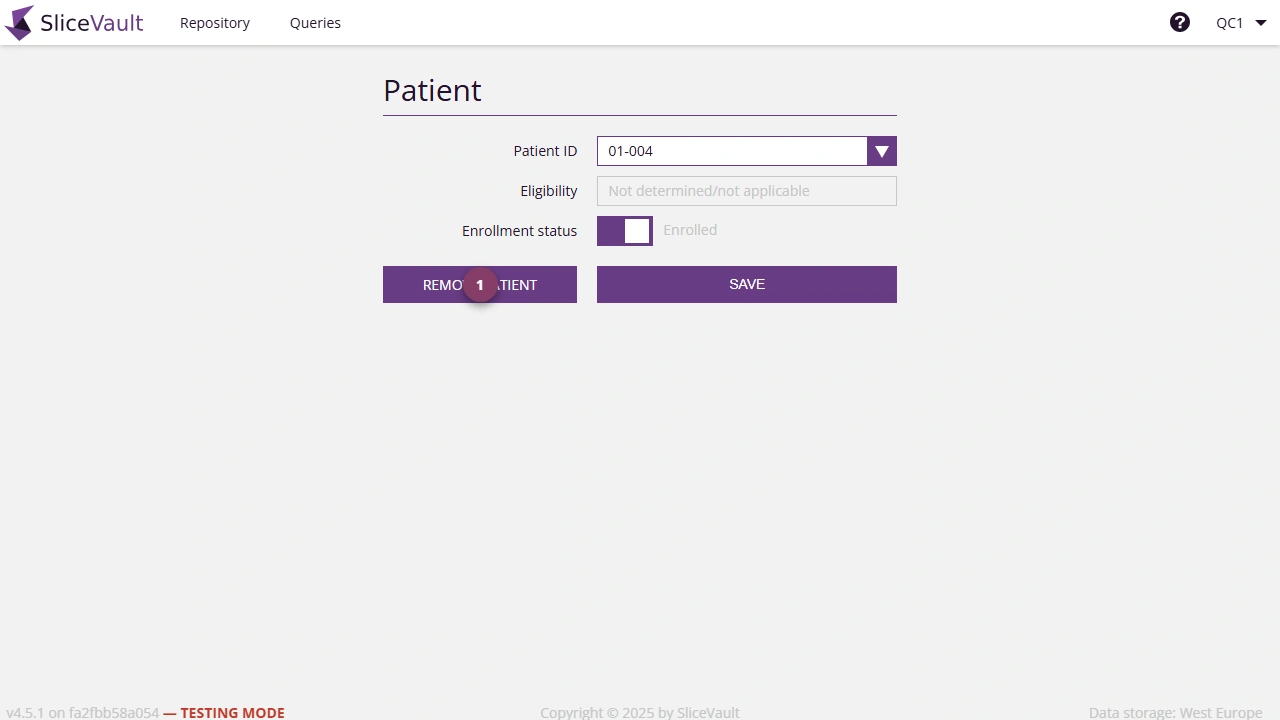
- Use 1 to remove the patient after all visits have already been deleted.
This permanently removes the patient and all associated metadata records from the study.