Repository Filters and Status
For Monitors and Project Managers, the repository is the fastest way to understand which patients and visits need attention. It shows visit progress across the study and helps you focus on open questions, missing forms, and overdue tasks.
Repository Overview
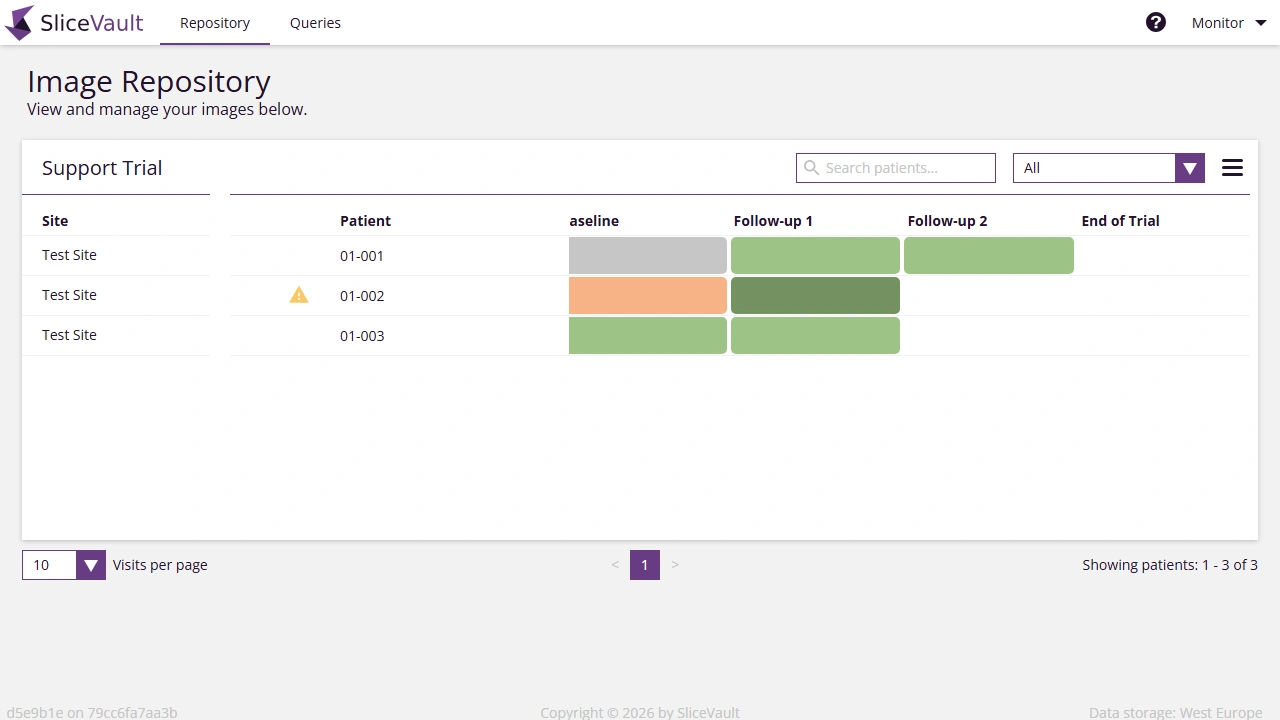
The patient list is customized for each study, but the overall layout stays the same: patients are listed in rows, visits are shown in columns, and each visit tile reflects the current workflow state.
Filter and Focus Your Review
Use the repository controls when you need to:
- focus on visits in a specific workflow state
- find patients that still require monitor or project manager action
- identify where forms, queries, or alerts are present
The repository menu and filters are especially useful in larger studies where many sites and visits are active at the same time.
Understand Status Colors and Icons
Each visit tile gives a quick visual signal about its current state:
- White means no data has been uploaded
- Gray means data exists but is not yet available to your role
- Light green means QC has approved the visit
- Dark green means reader work is complete
- Red means the visit was rejected in the workflow
Additional icons highlight issues that may need follow-up:
 Open query present on the visit
 A required monitor or PM form still needs attention
 A deadline for required action has passed
Next Step
Once you find the visit you need, click the colored tile to open the Study Repository view for visit-level detail, image access, and document review.