Image rendering error (WebGL)
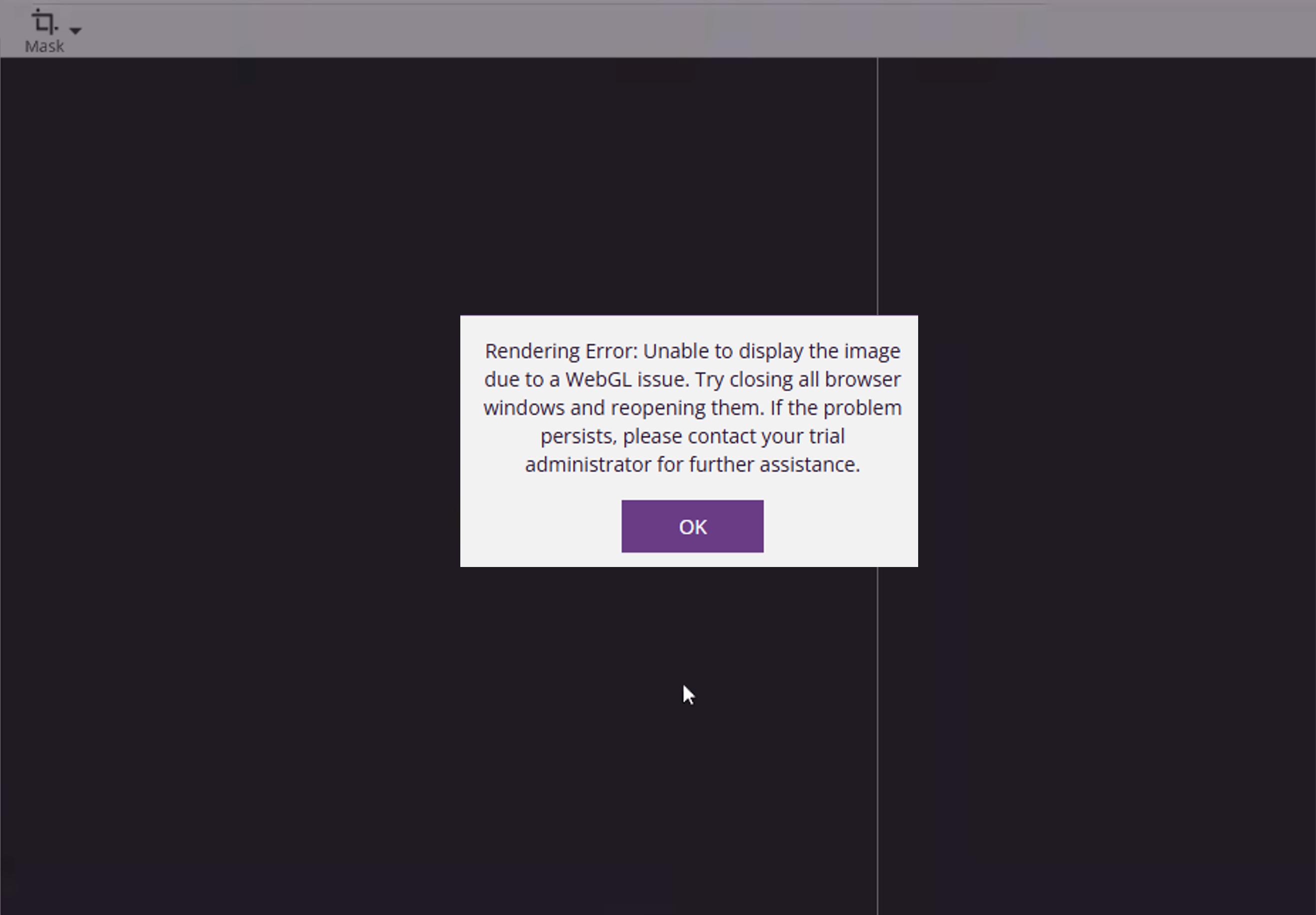
Error message: Unable to display the image due to a WebGL issue. Try closing all browser windows and reopening them. If the problem persists, please contact your trial administrator for further assistance.
Applies to: All modalities viewed in the embedded DICOM viewer.
Typical symptom: the image does not display and a popup reports a WebGL rendering error.
Why this happens
SliceVault’s embedded DICOM viewer uses WebGL for GPU-accelerated image rendering inside the browser. WebGL rendering errors occur when the browser or graphics hardware cannot allocate the resources required to display the image.
This is most commonly seen with very large imaging datasets, such as:
- High-resolution images with large X and Y dimensions
- Studies with many slices or additional dimensions (for example dynamic or multi-phase acquisitions)
- Hybrid imaging studies such as PET/CT or PET/MR, where multiple volumes are rendered together
In these cases, client-side limits may be exceeded. When this limit is reached, the browser cannot allocate the required GPU resources and SliceVault cannot display the images.
However, WebGL rendering errors are not caused by a single factor. They can also occur due to other client-side constraints, including:
- Limited available GPU memory
- Integrated or low-end graphics hardware
- Browser-specific WebGL limitations or bugs
- Outdated or unstable graphics drivers
- GPU resources already in use by other applications or browser tabs
In these situations, the image dimensions may technically be within supported limits, but WebGL may still fail to initialize or allocate the required buffers.
How to resolve the issue
1. Restart the browser
Completely close all browser windows and reopen the browser.
This releases GPU resources that may be held by previous sessions.
2. Reduce GPU load
- Close other browser tabs
- Close GPU-intensive applications such as video conferencing, DICOM viewers, or image editing tools
- Avoid opening multiple SliceVault viewers at the same time
3. Try a different browser
Test the same study in another modern, up-to-date browser to compare behavior (preferably Google Chrome).
4. Use a system with a dedicated GPU
Dedicated graphics cards typically support larger textures and higher memory limits than integrated graphics solutions.
Tip: If the issue persists, download the image and review it in a dedicated DICOM viewer, which does not rely on browser technologies such as WebGL and is not subject to the same limitations.
Important notes
This issue is client-side and related to browser and hardware limitations. There is typically little SliceVault can do to change this behavior, as it is governed by the user’s browser, GPU, and system resources rather than the SliceVault platform itself. It is not caused by data corruption or ingestion errors, and re-ingesting the study will not resolve the problem.
When to contact support
If the error persists, contact your SliceVault administrator or support team and include:
- Browser name and version
- Operating system
- GPU type if known
- Whether the issue occurs for all studies or only specific ones